In order to report revenue and conversion data by device, a dynamic device parameter (i.e. Google's {device} ValueTrack parameter) must be appended to your destination URLs.
Setting up a separate device parameter name-value pair is the recommended approach used to append device type information to URLs.
How To Configure Device Parameter Tracking ID Settings
Here is a step-by-step guide to setting up your device parameter tracking ID:
- Navigate to Admin > Revenue & Tracking > Tracking IDs
- Click + ('plus sign' icon).
- Under Parameter Type, select Device.
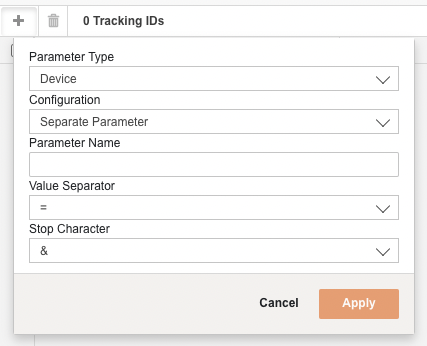
- Input the Configuration, Parameter name, Value separator, and Stop character. The Value Separator is typically = and the Stop Character is typically &.
- Click Apply.
An Example Of Device Parameter And Migrated URLs
Example 1
- URL pre-migration: http://example.com/?mkwid=abcd1234&pcrid={creative}
- Device Parameter Tracking ID Settings: parameter name 'pdv', value separator '=', stop character of '&'
- URL post-migration: http://example.com/?mkwid=abcd1234&pcrid={creative}&pdv={device}
Example 2
- URL pre-migration: http://example.com/?utm_content=abcd1234|pcrid|{creative}|
- Device Parameter Tracking ID Settings: parameter name 'pdv', value separator '|', stop character of '|'
- URL post-migration: http://example.com/?utm_content=abcd1234|pcrid|{creative}|pdv|{device}|
Note that '{device}' will be substituted with an 'm' for mobile clicks, 't' for tablet clicks, and 'c' for desktop clicks when served by the publisher. To learn more about Google's {device} ValueTrack parameter, see Google's Guide to Using ValueTrack.
